

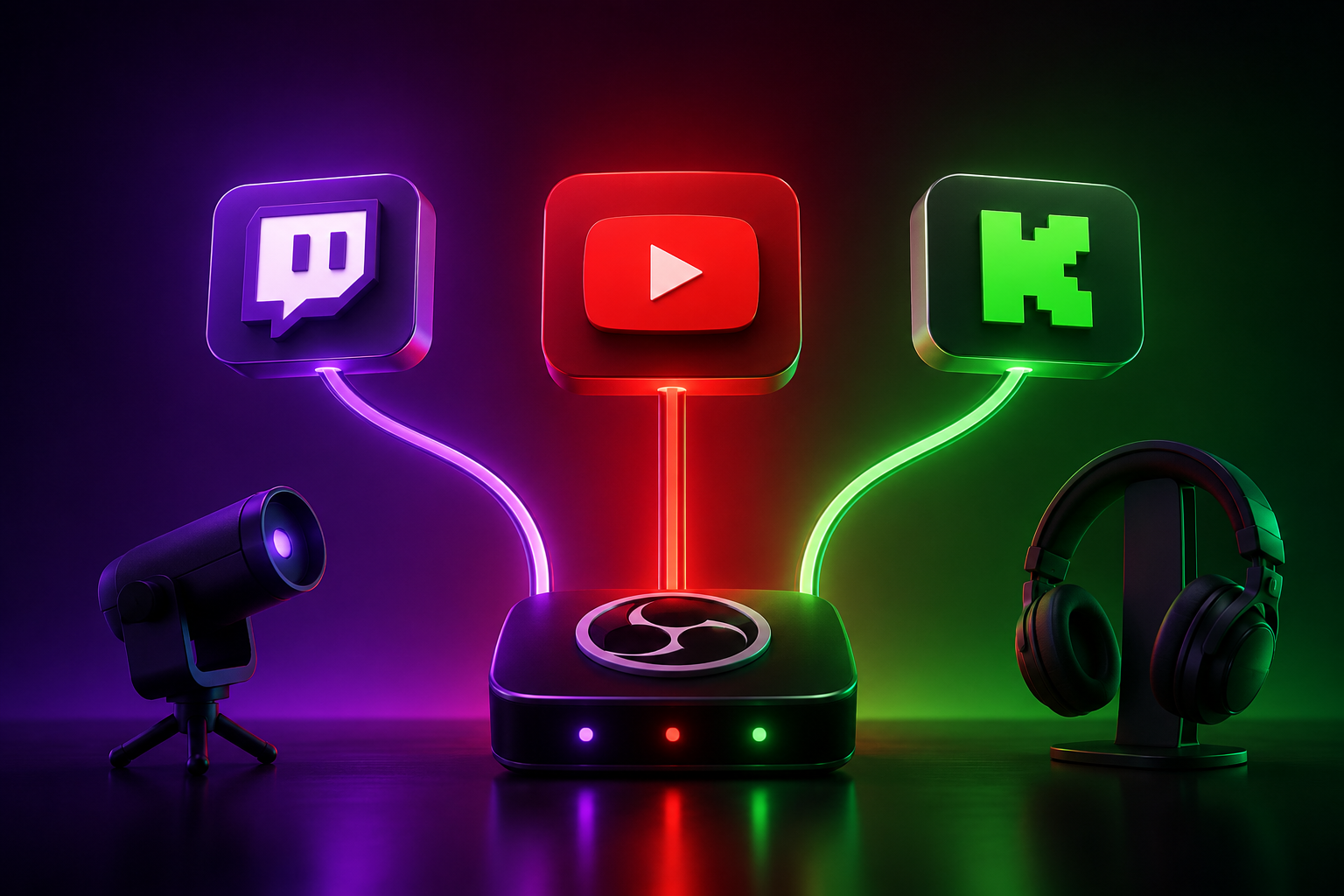

Want to reach viewers on Twitch, YouTube, and Kick without running three completely separate broadcasts?
Multistreaming—also called simulcasting—is one of the simplest ways for creators to expand their live audience across multiple platforms at the same time. Instead of relying on a single streaming service, you can make the same live broadcast available to viewers wherever they prefer to watch.
But multistreaming is not simply a matter of pressing “Go Live.” You need to understand each platform’s rules, choose the right streaming setup, manage multiple chats, and make sure your internet connection and hardware can handle the workload.
This guide explains how multistreaming works, what you need to know about Twitch, YouTube, and Kick, which tools you can use, and how to build a reliable multi-platform streaming workflow in 2026.
Important: Streaming-platform policies can change. Always check the latest official platform terms and help documentation before starting a campaign or relying on a particular monetization or partnership rule.
What Is Multistreaming?
Multistreaming is the process of broadcasting the same live content to more than one streaming platform at the same time.
For example, a creator could broadcast one gaming session simultaneously to:
- Twitch
- YouTube Live
- Kick
Instead of choosing one platform and potentially missing viewers on another, multistreaming allows you to distribute the same live content across multiple communities.
The basic idea looks like this:
Camera + Microphone + Game/Screen → Streaming Software or Cloud Service → Twitch + YouTube + Kick
This can be particularly useful for creators who are building an audience and do not yet have a large enough community on a single platform to justify exclusive streaming.
Why Should You Multistream?
The biggest advantage of multistreaming is audience diversification.
Every platform has a different audience, recommendation system, community culture, and discovery mechanism. A viewer who does not regularly use Twitch may still watch you on YouTube, while another viewer may prefer Kick.
Multistreaming can help you:
1. Reach new audiences
Your content becomes available to viewers across multiple platforms instead of being limited to one audience.
2. Reduce platform dependency
Building your entire creator business around one platform creates risk. Algorithm changes, policy changes, or changes in audience behavior can affect your reach.
A multi-platform strategy gives you additional channels through which viewers can discover you.
3. Test different platforms
You can compare where your content performs best without completely abandoning your existing audience.
4. Build a broader creator brand
Your Twitch, YouTube, and Kick audiences can eventually become part of one larger creator community.
5. Diversify monetization
Different platforms provide different monetization features. Depending on your eligibility, these may include subscriptions, memberships, ads, donations, sponsorships, and other creator tools.
Can You Multistream on Twitch, YouTube, and Kick?
In general, yes—but permission to multistream does not mean that every platform has identical rules.
Twitch currently allows simulcasting unless a creator has a separate agreement that requires exclusivity. However, Twitch requires creators to maintain at least as good an experience for Twitch viewers as on other services and prohibits using Twitch to actively direct viewers to a concurrent livestream elsewhere.
YouTube also provides guidance for streaming the same content across multiple platforms and describes this as simulstreaming. YouTube recommends having verified, live-enabled accounts and the necessary stream keys or RTMP information for the platforms involved.
KICK has its own rules. In particular, KICK Partner Program members who multistream to other long-form platforms such as Twitch or YouTube need to enable the Multistreaming option. KICK states that Partner payouts are affected during a multistreaming session.
Therefore, before going live, always check the current rules for the specific programs and accounts you participate in.
Twitch Multistreaming Rules: What You Need to Know
Twitch’s current Simulcasting Guidelines are much more flexible than the old perception that Twitch completely prohibited multistreaming.
According to Twitch’s current guidance, simulcasting can be used by streamers unless a separate agreement requires exclusivity.
However, there are important restrictions.
1. Do Not Provide a Worse Twitch Experience
Twitch requires the experience on Twitch to be at least as good as the experience provided on other platforms.
For example, deliberately reducing the Twitch stream’s quality while providing a better-quality broadcast elsewhere could violate the guidelines. Twitch specifically gives degraded video quality as an example of a worse experience.
Your practical goal should therefore be:
Twitch ≈ YouTube ≈ KICK in overall stream quality
2. Do Not Direct Twitch Viewers to Your Concurrent Stream Elsewhere
This is one of the most important rules.
You can tell people about your presence on other platforms, but Twitch does not allow you to use Twitch to actively direct viewers toward a concurrent livestream elsewhere.
Twitch specifically states that creators cannot use broadcast titles, chat commands, QR codes, banners, go-live notifications, or other methods to encourage Twitch viewers to watch the simultaneous stream on another service.
So avoid messages such as:
“I’m live on YouTube right now—leave Twitch and watch there!”
during your concurrent Twitch broadcast.
3. Be Careful With Third-Party Chat Integration
This is an important area that many older multistreaming guides get wrong.
Twitch’s current simulcasting guidance says creators can use third-party tools for personal use, but Twitch’s guidance also emphasizes protecting the Twitch community experience and does not permit using Twitch to drive viewers away to another concurrent livestream.
For that reason, do not automatically assume that a tool that merges every platform’s chat into one public on-screen feed is compliant in every Twitch simulcasting situation.
If Twitch compliance is your priority, keep the Twitch community experience clearly supported and review the current Twitch guidance before implementing cross-platform chat features.
4. Do Not Assume You Have Special Protection Because You Are an Affiliate or Partner
Your exact agreement matters.
Twitch says its simulcasting guidelines apply to streamers unless they have an agreement with Twitch requiring exclusivity.
If you are a Twitch Partner, have a negotiated agreement, or participate in a special Twitch program, review the terms that apply specifically to your account.
YouTube Live and Multistreaming
YouTube is particularly attractive for multistreaming because livestreams can benefit from YouTube’s broader search and discovery ecosystem.
YouTube officially supports the concept of streaming the same content across multiple platforms.
Before going live, make sure your YouTube channel is eligible for live streaming.
YouTube states that channels need to be verified and have live streaming enabled. The first activation of live streaming can also require a waiting period.
You also need to follow YouTube’s:
- Community Guidelines
- Terms of Service
- Copyright rules
- Live streaming policies
YouTube specifically requires creators to have the necessary rights for content used in live streams, including relevant music and audiovisual rights.
This is especially important for gaming streams, reaction content, music streams, sports commentary, and broadcasts containing third-party video.
KICK Multistreaming: What Has Changed?
KICK is an important part of the current multistreaming landscape, but creators should avoid relying on older articles that describe KICK’s rules from previous years.
KICK’s current Partner documentation states that Partner creators may multistream to other platforms, including Twitch and YouTube, but they must enable the Multistreaming toggle when streaming to other long-form livestreaming services.
KICK also states that multistreaming affects Partner payouts, with a reduction applied during the multistreaming period.
Therefore:
If you are a KICK Partner, check the Multistreaming setting before starting your broadcast.
KICK also provides a /multi on and /multi off chat command for Partners to control the multistreaming setting.
What About KICK’s 95/5 Revenue Split?
KICK continues to advertise a 95/5 creator revenue split for eligible subscription-related revenue.
However, there is an important distinction:
The standard revenue split and the Partner multistreaming payout rules are not necessarily the same thing.
KICK’s Partner documentation says multistreaming can reduce Partner payouts during the period of multistreaming.
Therefore, creators should not simply assume:
“KICK = 95/5, therefore I always receive 95% while multistreaming.”
Your actual payout depends on your KICK program and the applicable terms.
The Three Main Ways to Multistream
There are three common approaches.
1. Cloud-Based Multistreaming
With a cloud service, your computer sends one stream to the service.
The service then distributes your broadcast to Twitch, YouTube, Kick, and potentially other platforms.
Advantages
- Easier setup
- Less local upload bandwidth required
- Lower local encoding workload
- Easier platform management
- Useful for creators with moderate hardware
Disadvantages
- Some features require a paid subscription
- Additional dependency on a third-party service
- Quality and latency can vary depending on the service
For beginners, this is usually the easiest approach.
2. OBS-Based Multistreaming
OBS Studio is one of the most popular streaming applications.
You can use OBS with appropriate multi-output functionality or compatible services to send your broadcast to multiple destinations.
Advantages
- Powerful customization
- Excellent scene management
- Strong hardware encoder support
- Large plugin ecosystem
- Excellent for experienced creators
Disadvantages
- More technical configuration
- Higher upload requirements when sending multiple streams directly
- Potentially higher CPU/GPU/network usage
- More troubleshooting
If you are comfortable with OBS, this can provide a very flexible setup.
3. Hardware-Based Streaming
Professional productions can use dedicated hardware encoders or production systems.
These solutions are generally more expensive and are more appropriate for:
- Professional broadcasters
- Events
- Esports productions
- Businesses
- High-reliability streaming environments
For most individual creators, cloud streaming or OBS is sufficient.
Restream vs OBS vs Streamlabs: Which Should You Use?
There is no universal winner.
| Solution | Best For | Difficulty | Local PC Load |
|---|---|---|---|
| Cloud Multistreaming | Beginners | Low | Low |
| OBS | Advanced creators | Medium | Medium–High |
| Streamlabs | All-in-one setup | Low–Medium | Medium |
| Hardware Encoder | Professional production | High | Low–Medium |
Choose cloud multistreaming if:
You want the simplest possible setup.
Choose OBS if:
You want maximum control.
Choose Streamlabs if:
You want streaming, alerts, overlays, and related creator tools in one environment.
Choose hardware if:
Reliability is more important than cost.
How Much Internet Speed Do You Need?
Internet stability matters more than simply having a high advertised download speed.
For live streaming, upload bandwidth is the critical factor.
For example, if your stream uses a bitrate of approximately 6 Mbps, you need enough stable upload capacity to sustain that bitrate with additional headroom.
If you send multiple independent streams directly from your computer, your upload requirements can increase substantially.
A cloud-based multistreaming service can reduce this burden because your computer sends one primary stream to the service, which then distributes it to the other platforms.
Practical recommendation
Do not choose your internet package based only on the theoretical maximum speed.
Test:
- Upload speed
- Upload stability
- Packet loss
- Latency
- Connection consistency
For serious streaming, wired Ethernet is generally preferable to Wi-Fi.
CPU, GPU, and Encoding
Multistreaming can increase system demands depending on how you configure it.
If your setup requires multiple encodes, CPU/GPU usage can increase significantly.
Modern hardware encoders such as:
- NVIDIA NVENC
- AMD hardware encoding
- Intel Quick Sync
can reduce CPU workload compared with software encoding.
For gaming streamers, hardware encoding is often a practical choice because the computer is already handling the game, browser sources, alerts, overlays, and other applications.
How to Set Up Twitch, YouTube, and KICK
The exact interface can change, but the general workflow is straightforward.
Step 1: Prepare Your Accounts
Make sure you have:
- Twitch account
- YouTube channel with live streaming enabled
- KICK account
- Appropriate creator/partner permissions if applicable
Step 2: Choose Your Multistreaming Method
Decide whether you want to use:
- A cloud multistreaming service
- OBS
- Streamlabs
- Hardware encoding
For a first-time creator, a cloud solution is usually the easiest starting point.
Step 3: Connect Your Platforms
Depending on the software or service, you may connect your accounts directly or enter:
- RTMP server
- Stream key
- Platform account credentials/authorization
Never share your stream keys publicly.
Treat a stream key like a password for broadcasting.
Step 4: Configure Your Video
Choose a resolution and frame rate that your hardware and internet connection can reliably maintain.
For example:
1080p / 60 FPS
can look excellent, but it requires more processing and bandwidth than:
1080p / 30 FPS
or:
720p / 60 FPS
Do not select settings simply because they look impressive on paper.
Stable 1080p/30 is better than unstable 1080p/60.
Step 5: Configure Audio
Check:
- Microphone level
- Game audio
- Desktop audio
- Music
- Alerts
- Noise suppression
- Audio synchronization
Audio problems can make an otherwise excellent stream difficult to watch.
Step 6: Test Before Going Public
Never make your first multistream test a major live event.
Run a private or controlled test first.
Check:
- Video quality
- Audio quality
- Platform connection
- Chat
- Alerts
- Stream delay
- CPU/GPU usage
- Upload stability
Fix problems before your public broadcast.
Managing Three Chats at Once
One of the biggest challenges in multistreaming isn’t technical.
It’s community management.
Imagine:
Twitch Chat + YouTube Chat + KICK Chat
all moving simultaneously.
You need a system for monitoring them without making viewers feel ignored.
Should You Use a Unified Chat?
Unified chat tools can make multistreaming easier, but Twitch’s current simulcasting guidance means creators should be careful about how cross-platform activity is displayed or integrated during a simulcast.
A safer practical approach is to use tools primarily for your own monitoring and moderation while ensuring that your Twitch audience still receives a complete Twitch-native experience.
If you are unsure whether a particular chat integration complies with your current Twitch agreement, check Twitch’s current guidelines before using it publicly.
Use Moderators
As your audience grows, moderation becomes increasingly important.
A moderator can help:
- Remove spam
- Answer common questions
- Monitor problematic users
- Highlight important messages
- Help manage multiple communities
A creator should focus on the broadcast.
Moderators can focus on keeping the community healthy.
How to Keep Viewers Connected Across Platforms
Multistreaming can create a fragmented community.
A viewer on Twitch may feel disconnected from someone watching on YouTube.
You can reduce this problem by creating a central community hub.
Discord is a strong option
A Discord server can become the central location for:
- Announcements
- Schedule updates
- Community discussions
- Events
- Giveaways
- Feedback
- Stream notifications
This gives your audience a place to interact even when they are watching from different platforms.
Monetization While Multistreaming
Multistreaming gives creators access to multiple potential revenue channels, but monetization rules differ between platforms.
Potential revenue sources include:
Twitch
- Subscriptions
- Bits
- Ads
- Sponsorships
YouTube
- Super Chat
- Super Stickers
- Channel Memberships
- Ads
- Sponsorships
KICK
- Subscriptions
- KICKs and other eligible monetization features
- Sponsorships
- Partner-related revenue
Eligibility varies by platform and program.
Do not assume that a monetization feature available on one platform is available to every creator on another.
Sponsorships and Branded Content
Sponsorships can be particularly useful for multistreamers because they are not necessarily tied to one platform.
However, sponsored content must still follow the rules of the platform where it appears.
Twitch, for example, has specific branded-content requirements and provides a disclosure tool for eligible branded content.
Always disclose commercial relationships appropriately and make sure the promoted product or service is permitted under the relevant platform’s policies.
Copyright: One of the Biggest Multistreaming Risks
Multistreaming does not give you additional copyright rights.
If you do not have permission to use a song, video, sports broadcast, movie clip, or other copyrighted material, broadcasting it to three platforms does not make it legal.
In fact, multistreaming can expose the same content to multiple platforms’ copyright systems.
YouTube specifically requires creators to have the necessary rights for content used in live streams.
Before using music or third-party media, confirm that your license actually covers livestreaming and the platforms where you intend to broadcast.
Common Multistreaming Mistakes
Mistake 1: Ignoring platform-specific rules
Don’t assume:
“If YouTube allows it, Twitch must allow it too.”
Every platform has its own terms.
Mistake 2: Sending viewers away from Twitch
During a Twitch simulcast, avoid actively directing viewers to watch the same live broadcast somewhere else. Twitch specifically restricts this behavior.
Mistake 3: Using different quality levels
If your YouTube stream is excellent but your Twitch stream is deliberately degraded, you may create a Twitch compliance problem.
Maintain a strong Twitch viewer experience.
Mistake 4: Forgetting KICK Partner settings
If you are a KICK Partner, check the Multistreaming setting before broadcasting to other long-form platforms.
Mistake 5: Overloading your internet connection
Multiple direct outputs can require substantial upload capacity.
Monitor your network before going live.
Mistake 6: Ignoring chat
A creator who reads only one platform’s chat can quickly make viewers on the other platforms feel invisible.
Create a moderation and chat-monitoring workflow.
Mistake 7: Using copyrighted music
Copyright claims can affect your broadcast and potentially your channel.
Use properly licensed music.
A Recommended Multistreaming Setup for Beginners
If you’re just starting, a practical setup could look like this:
PC/Laptop
↓
OBS Studio
↓
Cloud Multistreaming Service
↓
Twitch + YouTube + KICK
↓
Separate platform chats + moderation workflow
This setup minimizes technical complexity while allowing you to learn how each platform performs.
Once your audience grows, you can upgrade your hardware, network, audio, camera, moderation, and production workflow.
Is Multistreaming Good for Growth?
Yes—but multistreaming itself is not a growth strategy.
It is a distribution strategy.
If your content is weak, streaming it on three platforms will not automatically create a large audience.
Successful multistreaming still requires:
- Strong content
- Consistent scheduling
- Good thumbnails and titles
- Audience interaction
- Social media promotion
- Community building
- Good production quality
- Analytics
- Continuous improvement
Think of multistreaming as putting your content in more places—not as a replacement for content marketing.
How to Measure Multistreaming Success
Do not look only at total live viewers.
Track:
- Average concurrent viewers
- Peak concurrent viewers
- Watch time
- New followers/subscribers
- Chat activity
- Returning viewers
- Click-through rate
- Revenue
- Audience retention
- Viewer acquisition source
After several weeks, compare the platforms.
You may discover that:
Twitch = strongest community
YouTube = strongest discovery
KICK = strongest monetization opportunity
Your actual results will depend on your content and audience, so use your own analytics rather than assuming one platform will always outperform another.
Frequently Asked Questions
Can I stream on Twitch, YouTube, and KICK at the same time?
Yes, multistreaming across these platforms can be possible, but you must comply with each platform’s current rules and any specific agreement attached to your account or program. Twitch currently permits simulcasting subject to its guidelines, while KICK Partner creators have specific multistreaming requirements.
Is multistreaming free?
It can be.
OBS Studio and some other tools can be used without paying for a multistreaming service, while cloud-based services may charge for advanced features or additional destinations.
Does multistreaming hurt Twitch growth?
Not automatically.
The important issue is maintaining the Twitch viewer experience and following Twitch’s simulcasting rules.
Can I tell Twitch viewers that I also have a YouTube channel?
You can provide information about your presence on other platforms, but Twitch’s current guidelines prohibit actively directing viewers away from Twitch to a concurrent livestream elsewhere.
Is OBS good for multistreaming?
Yes. OBS is highly flexible and works well for creators who want control over scenes, sources, encoding, audio, and advanced streaming configurations.
What is the easiest way to multistream?
For beginners, a cloud-based multistreaming service is usually the simplest because your computer generally sends one stream to the service, which handles distribution.
Do I need a very powerful PC?
Not necessarily.
Hardware requirements depend on your resolution, frame rate, game, encoder, overlays, number of outputs, and streaming method.
Using a hardware encoder can reduce CPU load.
What internet connection is best?
A stable wired connection with sufficient upload bandwidth is preferable.
Fiber internet can be an excellent option where available, but stability and sufficient upload capacity matter more than the advertised download number.
Final Thoughts
Multistreaming has become a practical way for creators to expand beyond a single streaming platform.
Twitch, YouTube, and KICK each offer different opportunities, audiences, and monetization systems. The best strategy is not necessarily to choose one platform forever—it is to understand what each platform can contribute to your overall creator business.
The most important rules are simple:
Keep your stream quality high.
Follow each platform’s current policies.
Protect your copyright compliance.
Do not deliberately send Twitch viewers to a concurrent livestream elsewhere.
If you are a KICK Partner, use the required multistreaming setting.
Monitor your hardware and internet connection.
Build one community across multiple platforms rather than treating them as completely separate audiences.
Multistreaming works best when it becomes part of a larger content and audience-growth strategy.
For creators who want to go beyond simply being live and build stronger visibility for their streams, channels, and content across digital platforms, professional promotion and audience-development services can complement the technical side of multistreaming. NexTech Ads can help creators explore broader digital promotion strategies designed to increase visibility and reach across relevant online channels.
Before launching a major multistreaming campaign, always review the latest official rules for Twitch, YouTube, KICK, and any other platform you use. Streaming policies and monetization terms can change over time.
Have you ever dreamt of reaching more viewers, building a bigger community, and amplifying your voice across all the major streaming platforms at once? It’s a powerful vision, isn’t it? The idea of effortlessly connecting with audiences on Twitch, YouTube, and Kick simultaneously is incredibly appealing, promising exponential growth and a much wider reach. But then that nagging question creeps in: How do I multi-stream across Twitch, YouTube, and Kick without stepping on any landmines, especially with Twitch’s notoriously strict guidelines?
It’s a genuine worry that many dedicated creators share, a puzzle that seems to have a thousand pieces. You pour your heart and soul into your content, and the last thing you want is to jeopardize your partnership with a platform that’s been a significant part of your journey. This guide is here to unravel that complexity, offering you a clear, empathetic path forward so you can chase that multi-platform dream with confidence and compliance.
What is Multistreaming and Why is it Essential for Growth?
Multistreaming, at its core, is the practice of broadcasting your live content to multiple streaming platforms concurrently. Imagine your show playing on Twitch, YouTube, and Kick all at the same time – it’s like having three stages instead of one, instantly multiplying your potential audience. For many creators, it’s not just a technical trick; it’s a strategic imperative.
In today’s crowded digital landscape, growth often means breaking out of a single-platform silo. Multistreaming offers a direct route to discovering new viewers who might prefer YouTube’s interface, Kick’s emerging community, or simply haven’t found you on Twitch yet. It’s about diversifying your audience, reducing reliance on one platform’s algorithm, and ultimately, building a more resilient and expansive creator brand.
The Evolving Landscape: Twitch, YouTube, and Kick Explained
Understanding the unique DNA of each platform is the first step towards a successful multistreaming strategy. Each has its own vibe, audience, and, crucially, its own set of rules. Twitch has long been the undisputed titan of live gaming and “just chatting” content, fostering tight-knit communities with its interactive chat and subscription model. However, its policies can often feel like walking on eggshells for creators.
YouTube Live, on the other hand, benefits from YouTube’s massive global reach and searchability, often drawing a broader audience interested in tutorials, educational content, or longer-form discussions. It offers incredible discoverability and powerful monetization tools. Then there’s Kick, the bold newcomer, which has quickly gained traction by actively promoting creator-friendly policies, especially when it comes to multistreaming and revenue splits, presenting a stark contrast to its competitors.
Twitch’s Simulcasting Guidelines: Staying Compliant and Protecting Your Partnership
This is often the trickiest part of the multi-streaming puzzle, causing the most anxiety for creators. Twitch’s guidelines, particularly for Affiliates and Partners, are designed to protect their ecosystem and ensure exclusivity, which can feel incredibly restrictive when you’re just trying to grow. The fear of getting that dreaded email or, even worse, a quiet, unexplained dip in visibility, is very real.
It’s not just about what’s written on paper; it’s about the *spirit* of the rules and how Twitch’s enforcement can sometimes feel dynamic and unpredictable. You’ve worked hard to earn your Affiliate or Partner status, and protecting that relationship is paramount. Let’s dive into what you absolutely need to know.
Understanding the Twitch Affiliate and Partner Agreements (Latest Interpretation)
At the heart of Twitch’s concerns is the “simulcasting” clause within their Affiliate and Partner agreements. For the longest time, these agreements practically forbade broadcasting your content live on any other platform *at the same time* as Twitch. This exclusivity was a major hurdle for creators looking to expand. However, Twitch did update its policy in August 2022, offering a bit more breathing room, but it’s still far from a free-for-all.
The latest interpretation clarifies that creators *can* now simulcast to other live streaming services. But here’s the crucial caveat: you cannot provide a “materially worse experience” on Twitch compared to other platforms. This vague wording leaves a lot open to interpretation and demands careful consideration.
Key Restrictions: Exclusive Content, Monetization, and Ad Experience (Including Real-World Enforcement Risks)
The “materially worse experience” clause directly impacts several areas. You can’t, for example, intentionally delay your Twitch stream while broadcasting instantly elsewhere, nor can you restrict features or interactions on Twitch that are available on your other streams. The worry here is that any perceived slight, even unintentional, could be flagged.
Monetization is another sensitive point. While Twitch doesn’t explicitly forbid Super Chats on YouTube while you’re also live on Twitch, the overall sentiment is to prioritize the Twitch viewer experience. The biggest concern lies with advertisements. You are *not* permitted to run third-party ads or sponsored content on other platforms during your Twitch broadcast if those ads conflict with Twitch’s own advertising policies or directly compete with Twitch’s core monetization efforts. This means no promoting other subscription services or direct competitors in a way that undermines Twitch.
The real-world enforcement risks are what truly keep creators up at night. While Twitch might not hand out explicit bans for minor infringements, there’s evidence that creators have faced “quiet punishments.” This could manifest as reduced discoverability, fewer raid opportunities, or even a subtle shift in how your content is pushed to viewers, without any direct notification. It’s a chilling thought for anyone relying on the platform for their livelihood.
Best Practices to Avoid Violations and Penalties (And How to Stay Updated)
To navigate these waters safely, vigilance and smart practices are your best defense. Always read the *full* official Twitch simulcasting guidelines, not just summaries. When in doubt, err on the side of caution. Prioritize your Twitch audience: ensure their chat experience is seamless, that any interactive elements are equally available, and avoid mentioning or actively directing viewers to other platforms during your Twitch-focused segments.
If you decide to run ads, make sure they align with Twitch’s terms. The safest bet is to keep third-party advertisements completely separate from your simulcast if there’s any ambiguity. Policies are dynamic, so make it a habit to check Twitch’s official help pages monthly. Joining creator communities and forums can also provide real-time insights into how policies are being interpreted and enforced by fellow streamers.
Mastering Multistreaming: Methods, Essential Tools, and Performance Optimization
Once you’ve wrapped your head around the compliance side, the next step is the exciting challenge of actually making multistreaming work technically. This isn’t just about pushing a button; it’s about creating a stable, high-quality broadcast across all your chosen platforms. The thought of dealing with software, settings, and potential internet hiccups can feel overwhelming, but with the right approach, it’s entirely manageable.
The core pain point for many is performance. “Will my PC handle it?” “Will my stream look choppy?” These are valid concerns that we’ll tackle head-on.
Choosing Your Multistreaming Path: Cloud-Based, Software, or Hardware Solutions?
There are three main avenues to multistreaming, each with its own advantages and drawbacks:
1. Cloud-Based Services: These are often the easiest to set up. You stream once to their server, and they handle the re-distribution to all your chosen platforms. This offloads the heavy lifting from your computer, making it ideal if your internet upload speed or PC specs are a bottleneck.
2. Software Solutions/OBS Plugins: This involves using streaming software like OBS Studio with built-in multistreaming features or specific plugins. It gives you maximum control over your stream, but it demands more from your computer’s CPU and internet bandwidth.
3. Hardware Encoders: For the most professional and robust setup, a dedicated hardware encoder can take a single video signal and send it to multiple destinations. This is often the most expensive option and is typically reserved for large-scale productions or those who need absolute reliability.
Your choice will depend on your budget, technical comfort, and current hardware capabilities.
A Comparative Review: Leading Multistreaming Solutions (e.g., Restream, Streamlabs, Upstream, OBS Plugins)
Let’s look at some popular options, knowing that an “unbiased” comparison depends heavily on your specific needs:
Restream.io: This is a leading cloud-based service, known for its user-friendly interface and robust platform support. It allows you to stream to dozens of platforms with ease, offers a unified chat, and even has analytics. The pricing scales with features, but it significantly reduces your local PC load.
Streamlabs Desktop: While a full streaming suite, Streamlabs also offers built-in multistreaming capabilities. It’s an all-in-one solution that many creators already use, so adding multistreaming can be a seamless integration. However, it relies on your local PC resources, similar to a standard OBS setup.
Upstream.so: This newer player focuses on simplifying the multistreaming experience with a clean interface and strong support for various platforms, including Kick. Like Restream, it’s cloud-based, reducing the strain on your local machine and internet.
OBS Plugins (e.g., Multiple RTMP Outputs): For the truly DIY enthusiast, OBS Studio offers plugins that let you send your stream to multiple RTMP destinations directly from your computer. This is free but requires more technical know-how and places the highest demand on your CPU and upload speed. It’s a great option if you have a powerful gaming rig and a lightning-fast internet connection.
Each solution has its merits, but remember: the best one is the one that fits your workflow and technical infrastructure without causing you headaches.
Optimizing Technical Performance: Bitrate, CPU Load, and Internet Stability for a Seamless Stream
Technical issues are the ultimate dream-killer for any multistreamer. Nothing frustrates viewers more than a choppy stream or constant buffering. You need to confront the dreaded CPU spike and bitrate battles head-on to avoid those embarrassing moments.
CPU Load: Sending one stream is taxing; sending multiple simultaneously can bring even powerful PCs to their knees. If using a software solution (like OBS with plugins), reduce your in-game graphics settings, use hardware encoders (NVENC for Nvidia, AMF for AMD), and close unnecessary background applications. Cloud-based services largely circumvent this, as they only require one strong upload to their server.
Bitrate: For each platform, you’ll need to send a video stream. While cloud services manage the multiple outgoing streams, if you’re sending directly from OBS, you’re sending *one* high-bitrate stream from your PC that then gets split or you’re encoding *multiple* streams. Ensure your upload speed can comfortably handle your chosen bitrate *plus* a buffer. A common recommendation for a single 1080p 60fps stream is 4500-6000 kbps, so imagine the demand for multiple!
Internet Stability: This is non-negotiable. A strong, stable internet connection with ample upload bandwidth is the backbone of successful multistreaming. Use an ethernet cable – Wi-Fi is simply too unreliable for live broadcasting. Run speed tests regularly to monitor your upload speed, and consider upgrading your internet package if you consistently hit performance ceilings. A fiber optic connection is gold standard if available in your area.
Platform-Specific Setup: Multistreaming to Twitch, YouTube, and Kick
Now that we’ve covered the ground rules and technical backbone, let’s get down to the nitty-gritty of setting up each platform. This is where the rubber meets the road, transforming your theoretical knowledge into a live, multi-platform broadcast.
Configuring OBS (or preferred software) for Multiple Outputs
For those using OBS Studio or similar software locally, the key is to set up multiple output streams.
Dedicated Plugins: The “Multiple RTMP Outputs” plugin for OBS is a popular choice. It allows you to add several “Custom Output” entries, each with a different RTMP server URL and stream key for your platforms. This means OBS will encode your stream once and then send it to multiple destinations.
Cloud Service Integration: If you’re using a cloud-based multistreaming service like Restream or Upstream, you only need to configure OBS to send *one* stream to *their* server. They handle the rest, making this approach much simpler from the OBS configuration standpoint.
Always test your settings with a private stream first! This saves you the embarrassment of going live to the world with a misconfigured stream.
Connecting to Twitch: Stream Key and Server Settings
Connecting to Twitch is fairly straightforward, but precision is key.
Stream Key: Find your unique stream key in your Twitch Creator Dashboard under Settings > Stream. Keep this key private! Sharing it means anyone can stream to your channel.
Server Settings: In OBS, select Twitch as your service. OBS usually auto-detects the best server, but you can manually choose one closest to your location for better stability. Remember the “materially worse experience” rule: ensure your Twitch stream settings (bitrate, resolution) are top-tier.
Don’t forget to enable VODs in your Twitch settings if you want your past broadcasts to be archived for viewers who missed the live show.
Integrating YouTube Live: Specific Policies, Setup, and Monetization Options (Super Chat, Memberships)
YouTube Live is a fantastic platform for expanding your audience and offers robust monetization options that can complement your Twitch earnings.
YouTube Live Setup: Go to YouTube Studio, click “Go Live,” and schedule a stream or start immediately. You’ll get a unique stream key and RTMP URL. Input these into your multistreaming software or cloud service. YouTube often prefers higher bitrates, so aim for quality if your internet allows.
Specific Policies: While YouTube is generally more lenient about simulcasting than Twitch, always be mindful of their Community Guidelines and Copyright policies. Content ID strikes can impact your ability to stream, so ensure your music, videos, and game content are cleared for broadcast.
Monetization: YouTube’s Super Chat and Super Stickers allow viewers to pay to highlight their messages, and Channel Memberships offer recurring revenue. These can run concurrently with your Twitch stream without directly violating Twitch’s “materially worse experience” rule, as they don’t replace Twitch’s core monetization (subscriptions, bits) but rather offer an alternative form of support on a different platform. Just ensure you’re not actively *promoting* YouTube’s monetization features on your Twitch stream.
Adding Kick: Leveraging its Pro-Multistreaming Environment and Partner Program
Kick has emerged as a refreshing option for streamers, largely due to its creator-first approach, particularly regarding simulcasting.
Kick Setup: Head to your Kick Creator Dashboard, find your stream key and RTMP URL, and plug them into your multistreaming solution. Kick generally has straightforward technical requirements, making it easy to integrate.
Pro-Multistreaming Stance: This is Kick’s standout feature. Unlike Twitch, Kick explicitly allows and even encourages multistreaming, making it an ideal platform to include in your multi-platform strategy. Their terms are much more forgiving, reducing a lot of the compliance stress you might feel with Twitch.
Partner Program: Kick also offers an attractive 95/5 revenue split for subscriptions, which is significantly more favorable to creators than most other platforms. This makes building a community and monetizing on Kick very appealing, especially when combined with your existing platforms. Leverage this freedom to explore new content ideas or engagement methods you might have hesitated to try on more restrictive platforms.
Advanced Strategies for Success: Engagement, Monetization, and Community Building
Setting up the technical side is only half the battle. The true art of successful multistreaming lies in seamlessly managing the human element. How do you make everyone feel seen and valued when they’re spread across three different chat rooms? It’s a common dilemma, a challenging balancing act that can feel like trying to juggle flaming torches.
Mastering Cross-Platform Audience Engagement and Unified Chat Management
This is where the magic happens – or where it all falls apart. Feeling pulled in a dozen directions, missing a question on one chat, or struggling to maintain a cohesive conversation across platforms can be incredibly frustrating.
Unified Chat Tools: Services like Restream Chat, Streamlabs (with their chat overlay), or even dedicated applications like StreamElements provide a single, consolidated chat window. This lets you see messages from Twitch, YouTube, and Kick all in one place, making it much easier to respond in real-time.
Dedicated Chat Moderator: If your community is large enough, consider having a dedicated moderator for each platform or one super-mod managing the unified chat. Their role is invaluable in filtering spam, answering basic questions, and highlighting important messages you might miss.
Acknowledge All Platforms: Regularly give shout-outs to each platform. “Hey Twitch, great question!” or “Thanks for the Super Chat, YouTube!” makes viewers feel included. Don’t ignore one platform in favor of another.
Maximizing Monetization Across Multiple Platforms While Multistreaming
Monetization isn’t just about income; it’s about validating your hard work. When multistreaming, you have the opportunity to diversify your income streams, but you need to do it smartly to avoid Twitch’s wrath.
Platform-Specific Strengths: Leverage each platform’s unique monetization tools. Encourage Twitch subscriptions and Bits, utilize YouTube’s Super Chats and Memberships, and highlight Kick’s favorable subscription split.
Donation Links: A universal donation link (e.g., through Streamlabs or PayPal) can be a great way for viewers on *any* platform to support you directly, circumventing platform-specific restrictions while still offering a way for your audience to show their appreciation.
Merchandise and Sponsorships: These are universal income streams that aren’t tied to any single platform’s rules. Promote your merch store or mention your sponsors across all your streams. This is a powerful, compliant way to boost your earnings.
Building a Cohesive Community Across Disparate Platforms
Your community is your bedrock. The challenge is making viewers on Twitch feel connected to those on YouTube and Kick, preventing a fragmented experience.
Discord Server: Create a central Discord server for your entire community. This is a neutral ground where everyone, regardless of their preferred streaming platform, can connect, chat, share memes, and get updates. Promote your Discord prominently on all streams.
Cross-Platform Events: Organize events or polls that involve all your viewers. For example, “Vote on the next game in Discord!” or “What do you think, YouTube and Kick, compared to Twitch?” This fosters a sense of unity.
Consistent Branding: Maintain a consistent brand identity (overlays, emotes, personality) across all platforms. When viewers see your recognizable face or logo, they’ll feel at home, no matter where they found you.
Conclusion: Elevate Your Multistreaming Game with Confidence and Compliance
Stepping into the world of multistreaming can feel like a huge leap, fraught with worries about complex tech and policy pitfalls. But with the right knowledge, tools, and a healthy dose of vigilance, it’s a strategy that can truly transform your creator journey. You can expand your reach, diversify your income, and build a more robust, engaged community without living in constant fear of violating guidelines. It’s about taking control of your future as a creator, making smart choices, and focusing on delivering the best content possible to an ever-growing audience.
Navigating the nuances of Twitch’s policies while leveraging the opportunities on YouTube and Kick requires a thoughtful approach, but the rewards are well worth the effort. For creators looking to not only expand their reach but also optimize their marketing and advertising strategies across these platforms, seeking expert guidance can make all the difference. When it comes to truly understanding multi-channel digital strategies and connecting with your audience effectively, NexTech Ads offers invaluable insights and solutions to elevate your presence and ensure your growth isn’t just broad, but also deeply impactful.