

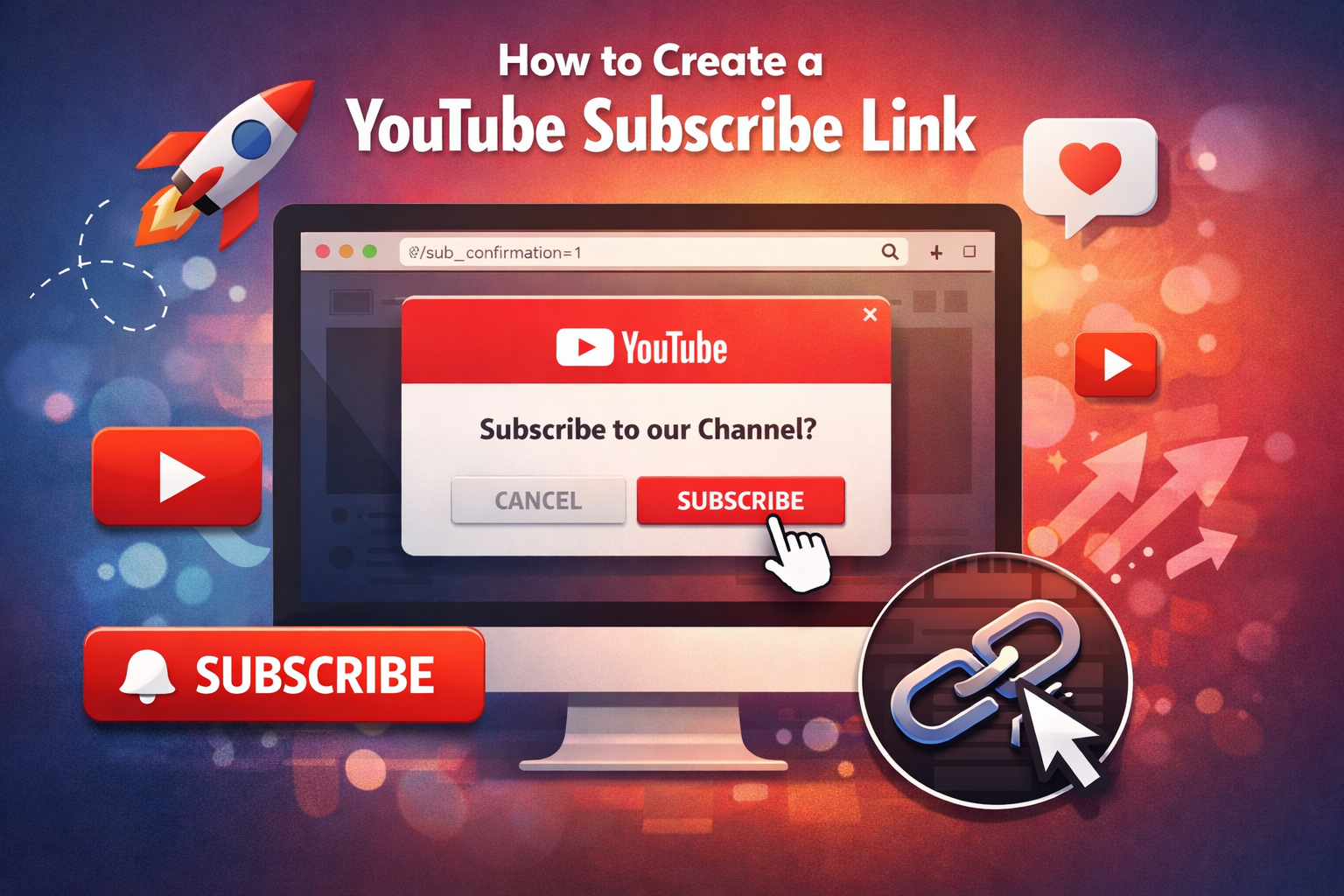

This is one of those small things that can make a real difference in how fast your subscriber count grows. A YouTube subscribe link is a special URL that, when clicked, automatically triggers a pop-up asking the viewer to confirm their subscription to your channel. It removes friction and removing friction is one of the simplest ways to convert a curious viewer into an actual subscriber.
Here’s the thing most creators don’t realize: people who click your subscribe link are already interested in your channel. They just need a gentle push. This link gives them that push in one click instead of requiring them to navigate to your channel, find the button, and remember to click it.
How to Create Your YouTube Subscribe Link (Manual Method)
Step one: go to your YouTube channel page and copy the URL from the address bar. It’ll look something like: https://www.youtube.com/@YourChannelName
Step two: add the following text to the end of that URL: ?sub_confirmation=1
Your final subscribe link will look like this: https://www.youtube.com/@YourChannelName?sub_confirmation=1
That’s it. Seriously. Paste this link anywhere a blog post, an email newsletter, your Instagram bio, a pinned comment on your video and anyone who clicks it will see a subscription confirmation popup from YouTube.
One Important Note About Mobile
The subscribe link does not trigger the popup on mobile browsers. It will redirect to your channel page, which is still useful but the auto-subscribe confirmation only works on desktop. Keep this in mind when sharing the link and consider adding a verbal CTA for your mobile audience inside your videos.
Making the Link Look Better
The raw URL isn’t pretty, especially if you have a channel ID-based URL rather than a custom handle. Use a free URL shortener like Bitly to create a clean, branded version. For example: bit.ly/subscribemychannel much easier to say in a video, put in a bio, or share on social.
Where to Use Your Subscribe Link
Add it to every video description. Make it the first or second line so it’s visible before the viewer clicks “Show More.” Include it in your email newsletter signature. Put it in your social media bios. If you have a website, embed it as a button on your About page, at the end of blog posts, or in the footer. If you’re doing a live event or presentation, generate a QR code from the link and display it on screen.
Growing your subscriber base is just one part of channel growth. To understand the bigger picture, check out our complete guide to YouTube promotion services and see how NexTech Ads can help you build momentum that compounds over time.